How to Convert Word to PDF Online Free (2026 Complete Guide)
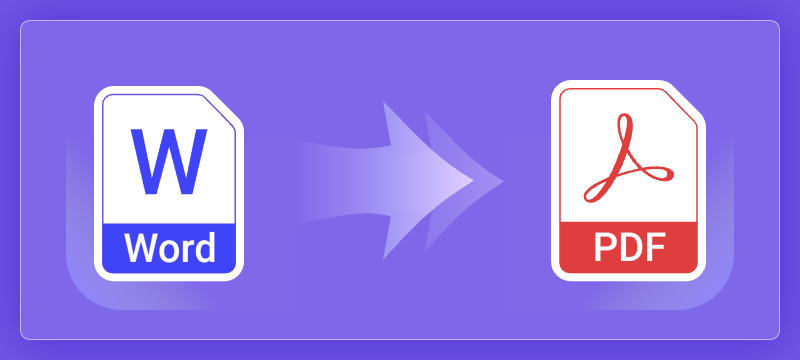
Need to convert a Word document to PDF right now? Here is the short answer:
⚡ Quick Answer: Go to theconverterkit.com/word-to-pdf, upload your .docx file, click Convert, and download your PDF. Free, no sign-up, done in under 30 seconds.
If you want to understand why PDF is better, which formats are supported, how to stay safe, and what to do after conversion, keep reading. This guide covers everything.
Why Word Files Are the Wrong Format for Sharing
Sending a .docx file to someone is a gamble. It depends entirely on their software, fonts, and settings to render correctly.
The document that looks perfect on your screen might arrive with broken layouts, substituted fonts, or garbled bullet points on theirs. If they are on a Mac, a phone, or an older version of Microsoft Office, the formatting shifts.
PDF eliminates this entirely. A PDF is a locked, self-contained file. Fonts, images, spacing, and layout are sealed inside it. It looks identical everywhere including Windows, Mac, Linux, iPhone, Android, and every browser.
That is why resumes, contracts, invoices, and reports are always shared as PDFs. It is not a preference. It is the professional standard.
Word vs PDF: Which One to Use When
| Word (.docx) | ||
|---|---|---|
| Still editing? | ✔ Use Word | ✗ |
| Sharing with others? | ✗ | ✔ Use PDF |
| Looks same on all devices? | ✗ May shift | ✔ Always identical |
| Needs to be editable? | ✔ Yes | ✗ Read only |
| Universal compatibility? | Requires Office | ✔ Opens anywhere |
| File size | Often larger | Usually smaller |
The rule is simple. Edit in Word, share as PDF.
How to Convert Word to PDF in 3 Steps
Using The Converter Kit’s free Word to PDF tool, the process takes under 30 seconds.
Step 1. Go to theconverterkit.com/word-to-pdf
Step 2. Upload your file. Drag and drop your .doc, .docx, or .rtf file onto the page, or click to browse your device.
Step 3. Click Convert. Your PDF is generated instantly. Hit Download and you are done.
No account. No watermark. No file size tricks. Works on desktop, tablet, and mobile.
🔒 Security note: Your file is uploaded over encrypted HTTPS and permanently deleted from the server the moment your download completes. Nothing is stored, logged, or shared.
What File Formats Are Supported
The converter accepts all standard Microsoft Word formats:
- .docx — The current Microsoft Word format (Word 2007 and later)
- .doc — The legacy Word format (Word 97 to 2003)
- .rtf — Rich Text Format, compatible with most word processors
Maximum file size: up to 100 MB. Works on Windows, Mac, Linux, iPhone, and Android.
What Gets Preserved in the Conversion
A good converter does not just extract your text. It replicates your entire document. Here is exactly what carries over:
- Fonts and text formatting. Font family, size, bold, italic, underline, and colour.
- Images. Embedded photos, diagrams, and screenshots at original resolution.
- Tables. Structure, borders, merged cells, and background shading.
- Headers and footers. Page numbers, logos, and custom content.
- Bullet and numbered lists. Hierarchy, indentation, and custom styles.
- Hyperlinks. Clickable links stay active in the PDF.
- Multi-column layouts. Two and three column page structures are preserved.
- Margins and spacing. All page margins, paragraph spacing, and indentation.
💡 Pro Tip: Before converting, accept all tracked changes in Word by going to Review, then Accept All Changes. Confirm your formatting looks exactly right. What you see in Word is precisely what you get in the PDF.
Tips for the Best Conversion Results
Small preparation steps before converting eliminate 95% of the issues people run into.
Accept all tracked changes first. Unresolved tracked changes can appear unexpectedly in the PDF. In Word go to Review, then Accept All Changes, then convert.
Embed your fonts. If you have used a non-standard font, embed it before uploading by going to File, then Options, then Save, then check “Embed fonts in the file.” This ensures the converter renders your exact typography.
Confirm your page size. Make sure your Word document is set to the correct size, either Letter for US or A4 for international. A mismatched page size can clip content at the edges.
Fill in form fields. If your document contains Word form fields or checkboxes, fill them in before converting. PDF form behavior differs from Word form behavior.
💡 Pro tip: Do a final review of your Word file at 100% zoom before converting. Scroll every page. What you see is precisely what the PDF will look like.
What to Do After Converting
Your PDF is ready. Here is what most people need next depending on their situation.
Combining documents? Use the Merge PDF tool to combine your converted PDF with other files into one organized document. Ideal for proposals, portfolios, or multi-section reports.
Sharing only part of the document? Use the PDF Splitter to extract specific pages before sending. Send only what is relevant instead of the whole file.
Got blank or unwanted pages? Clean them up instantly with the Remove PDF Pages tool before sharing.
Need to edit the PDF later? Use the PDF to Word converter to turn it back into a fully editable .docx file. No retyping required.
Converting other file types?
- Spreadsheets: Excel to PDF
- Presentations: PPT to PDF
- Scanned photos: Image to PDF
- Plain text files: Text to PDF
- eBooks: EPUB to PDF
- Web pages: Website to PDF
Common Mistakes When Converting Word to PDF
These are the errors that cause PDFs to come out wrong and how to avoid every one of them.
Skipping the pre-conversion review. Most formatting problems are visible in Word before you ever convert. Scroll through the whole document at 100% zoom first.
Using non-embedded fonts. Decorative or licensed fonts that are not embedded may get substituted in the PDF. Embed fonts in Word settings before uploading.
Converting before accepting tracked changes. Unresolved revisions create messy PDF output. Always finalize your document before converting.
Sending the .docx instead of the PDF. This happens more than you would think. People convert the file and then attach the original Word document by mistake. Double-check the file extension before sending.
Not checking the PDF after download. Open the converted PDF before sending it. Scroll every page. Confirm that images, tables, and headers look exactly as expected. It takes 60 seconds and prevents embarrassing errors.
Frequently Asked Questions
Is the Word to PDF converter really free?
Yes, 100% free. No subscription, no hidden fees, no watermarks, and no account required. Convert as many files as you need at any time.
Will my PDF have a watermark?
No. The Converter Kit never adds watermarks to converted files.
Is it safe to upload confidential documents?
Yes. All uploads use HTTPS encryption. Files are permanently deleted from the server immediately after your download completes. Nothing is stored or accessed by any third party.
What if my Word document uses special fonts?
Embed the fonts before uploading by going to File, then Options, then Save, then check “Embed fonts in the file.” This gives the converter access to your exact typography.
How do I convert a PDF back to an editable Word document?
Use the PDF to Word converter. Upload your PDF and download a fully editable .docx file. Formatting, tables, and images are all included.
Does it work on Mac, iPhone, and Android?
Yes. The Converter Kit runs entirely in your browser. No software to install on any device or operating system.
Related Tools You May Need
All tools are free, browser-based, and require no sign-up:
- PDF to Word — Edit any PDF in Microsoft Word
- Excel to PDF — Share spreadsheets as universally viewable PDFs
- PPT to PDF — Lock your presentation slides as a shareable PDF
- Merge PDF — Combine multiple PDFs into one organized document
- Split PDF — Break large PDFs into smaller sections
- Remove Pages — Delete unwanted or blank pages from any PDF
- Image to PDF — Turn scanned photos and images into PDF documents
- Text to PDF — Convert plain .txt files into formatted PDF documents
- EPUB to PDF — Convert ebooks to universally readable PDF format
- Website to PDF — Save any web page as a permanent offline PDF
Conclusion
Converting Word to PDF is one of those tasks that should take 30 seconds. With the right tool, it does.
The format you share documents in matters. PDF preserves your work exactly as you designed it, on every device, for every recipient. Word files do not. They shift, break, and depend on software you cannot control.
Convert your Word document to PDF free at The Converter Kit. Upload, convert, download. That is it.