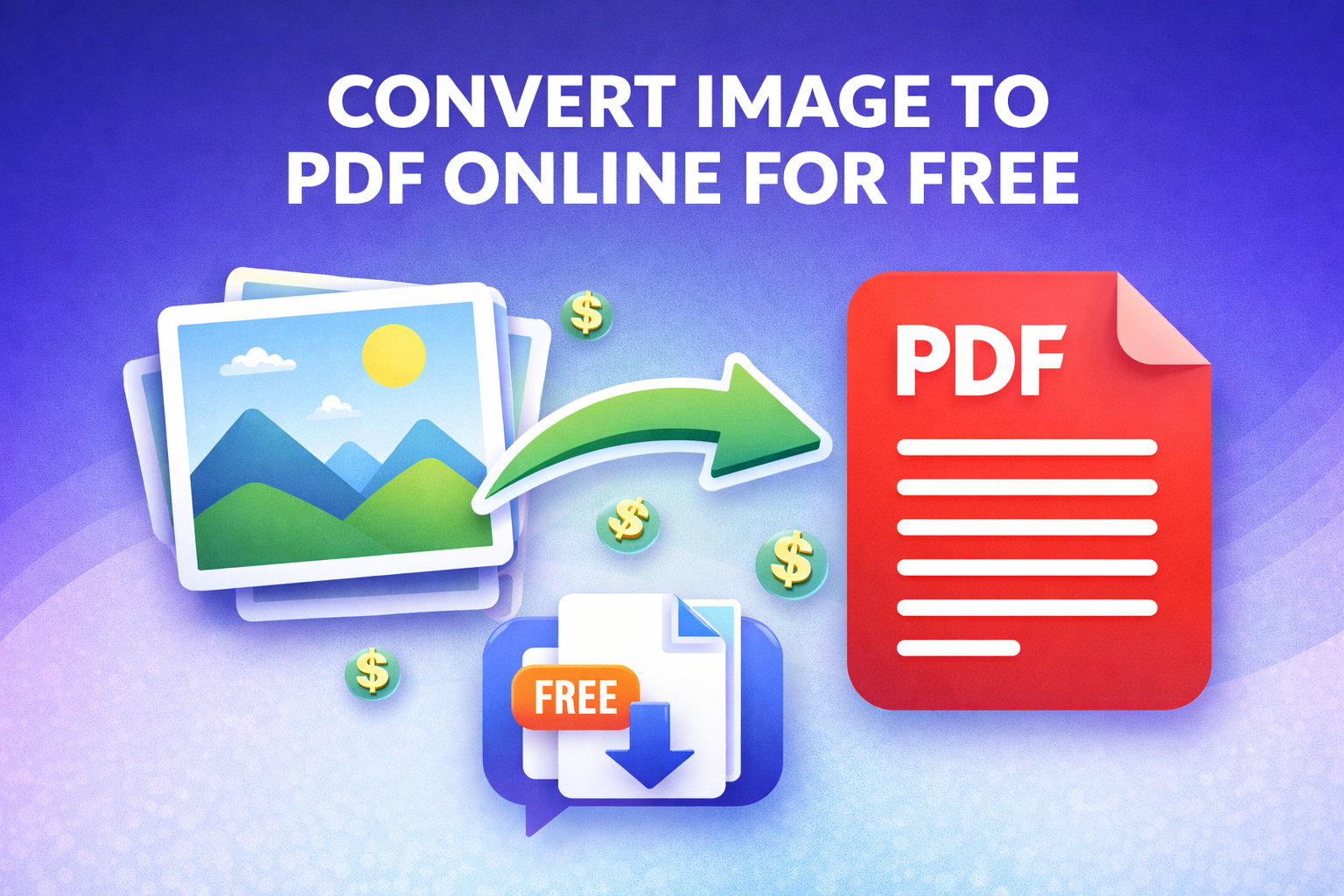
How to Convert Image to PDF Online for Free (2026 Guide)
You have a photo, a screenshot, or a scanned page. You need to send it as a PDF. You do not want to install software, create an account, or deal with watermarks plastered across your file.
This guide shows you exactly how to convert any image to PDF online in seconds for free.
⚡ Quick Answer: Go to theconverterkit.com/image-to-pdf, upload your image, click Convert, and download your PDF. Done in under 30 seconds. No sign-up needed.
Key Takeaways
- Convert JPG, PNG, WebP, GIF, BMP, and TIFF files to PDF instantly at Image to PDF
- Combine multiple images into a single, multi-page PDF in one upload
- No watermarks, no software installs, no account required
- Use Merge PDF to combine your image PDFs with other documents afterward
- Need to go the other way? PDF to Word can extract your content back into an editable format
- Works on Windows, Mac, iPhone, Android — any browser, any device
Why People Need to Convert Images to PDF
Images are convenient to capture but not always ideal for sharing. A JPG on your phone looks different on every screen. A PNG sent by email can be resized, edited, or stripped of context by the receiver.
PDF is the universal sharing format. It locks in your layout, maintains image quality, and displays identically on every device. Whether you are submitting a form, sharing a scanned document, or sending proof of something, PDF is always the right call.
The most common image-to-PDF scenarios come down to one thing: needing your image to behave like a document.
Who Actually Does This (and Why)
The need to convert images to PDF shows up across almost every profession and situation.
Job seekers scan their signed offer letters or certificates and need to send them as PDF attachments rather than loose image files.
Students photograph their handwritten notes or completed assignments and convert them to PDF before submitting through a learning management system.
Small business owners photograph receipts, invoices, or signed contracts and convert them to PDF to attach to emails or store in accounting software.
Freelancers screenshot client approvals, feedback, or payment confirmations and archive them as PDFs for their records.
Healthcare patients photograph lab results or prescription pages to send to another clinic or insurance provider as a PDF.
The one thing all of these have in common: they need a quick, free, no-fuss tool that does not add watermarks or require an account.
How to Convert Image to PDF in 3 Steps
Head to theconverterkit.com/image-to-pdf and follow these steps:
Step 1: Upload your image file. Click the upload area or drag and drop your file directly onto the page. Supported formats include JPG, JPEG, PNG, WebP, GIF, BMP, and TIFF.
Step 2: Arrange your images (if uploading multiple). If you are converting several images into a single PDF, you can reorder them before converting. Each image becomes one page in the final PDF.
Step 3: Click Convert and download. Your PDF is generated instantly. Click the download button and the file saves directly to your device.
No email required. No watermark added. No file size tricks.
Converting Multiple Images Into One PDF
This is one of the most useful features that most people do not realize is possible.
Instead of creating ten separate PDFs from ten separate photos, you can upload all of them at once and get a single, clean, multi-page PDF. Every image becomes its own page, in the order you arranged them.
This is especially powerful for scanning multi-page documents. Photograph each page separately, upload them all, and you have a perfectly assembled PDF document exactly as if you had used a scanner.
After converting, you can use Merge PDF to combine that document with other PDFs such as a cover page or a separate attachment into one final file.
What Image Formats Are Supported?
| Format | Use Case | Converts Well? |
| JPG / JPEG | Photos, scans, screenshots | Excellent |
| PNG | Graphics, logos, transparent images | Excellent |
| WebP | Web-optimized images | Yes |
| GIF | Simple graphics | Yes |
| BMP | Windows bitmap files | Yes |
| TIFF | High-resolution scans | Excellent |
All formats retain their original resolution in the output PDF. Your image will not be compressed or degraded during conversion.
Does Image Quality Change After Conversion?
No. The converter embeds your image at its original resolution inside the PDF. A high-resolution 300 DPI image stays at 300 DPI in the PDF.
The PDF file size will be similar to the original image size. If you need a smaller file, consider converting your image to WebP first at theconverterkit.com/image-to-webp, then converting the compressed version to PDF.
The quality you put in is the quality you get out.
What Happens to Your File After Conversion?
Your file is processed over an encrypted HTTPS connection. It is never stored permanently on the server and is deleted automatically after your conversion is complete. No one else can access it, and it will not appear in any database.
This is the standard that people expect from a secure conversion tool in 2026.
💡 Pro Tip: If your image has a white background and you want the PDF to look clean and professional, make sure your original photo is well-lit and straight before uploading. The converter reproduces exactly what it receives a crooked photo becomes a crooked PDF. One minute of preparation saves a lot of re-scanning.
What to Do After Converting
Once your image is a PDF, a few follow-up actions are common:
If you have multiple separate PDFs to combine into one submission, use Merge PDF to join them into a single file.
If your PDF is too large with many pages and you need to split it into sections, Split PDF handles that instantly.
If you converted a scanned document and need to edit the text inside, PDF to Word converts your PDF into an editable Word document.
Common Mistakes to Avoid
Uploading a low-resolution image and expecting a sharp PDF. The converter does not enhance image quality. If your photo is blurry, the PDF will be blurry. Start with the clearest image you can capture.
Forgetting to reorder images before converting. When uploading multiple images, always check the page order before clicking Convert. Reordering after the fact means starting over.
Converting a screenshot that is too small. Screenshots taken on small screens or at low zoom settings can look pixelated in a PDF. Zoom in before screenshotting, or increase your display resolution first.
Using a tool that adds watermarks. Some free tools limit file sizes or stamp “Trial Version” across your PDF. The Converter Kit adds no watermarks and has no file count limits.
Not checking the orientation. Portrait and landscape images both convert correctly, but if your photo was taken sideways, the PDF will be sideways. Rotate the image in your photo editor before uploading.
Frequently Asked Questions
Can I convert a JPG to PDF without losing quality?
Yes. The Converter Kit embeds your JPG at its original resolution. There is no compression or quality loss applied during the image-to-PDF conversion.
How many images can I convert to one PDF at once?
You can upload multiple images in a single session and they will all be combined into one multi-page PDF. Each image becomes one page in the final document.
Is it free to convert images to PDF?
Yes, completely free. There are no plans, subscriptions, or per-file charges. You can convert as many images as you need at no cost.
Does it work on iPhone or Android?
Yes. The tool works entirely in your browser and is fully compatible with iOS and Android devices. No app download is required.
What if my image has a transparent background?
PNG images with transparent backgrounds convert cleanly. The transparency is preserved and the background of the PDF page will appear white, which is the standard for most document uses.
Can I convert a scanned document image to a searchable PDF?
The converter creates an image-based PDF from your scan, which looks like the original document. To make the text searchable (OCR), you would need a dedicated OCR tool after conversion.
How is my file kept secure?
Your file is uploaded over an encrypted HTTPS connection, processed immediately, and deleted from the server automatically. It is never stored, shared, or accessible to anyone else.
What is the best image format to use before converting to PDF?
JPG and PNG produce the best results. If you are working with a photo, JPG is ideal. If your image has text, a logo, or transparent areas, PNG is the better starting point.
Related Tools
- Image to PDF — Convert any image to PDF free
- Merge PDF — Combine multiple PDFs into one
- Split PDF — Divide a PDF into separate pages or sections
- PDF to Word — Convert a PDF back to an editable document
- Image to JPG — Convert any image to JPG format
- Image to WebP — Compress images for web use
- Word to PDF — Convert Word documents to PDF
Conclusion
Converting an image to PDF does not need to be complicated. You do not need Photoshop, Adobe Acrobat, or a subscription to anything. You need your image and thirty seconds.
Whether you are turning one photo into a clean PDF or combining a stack of scanned pages into a single document, The Converter Kit’s Image to PDF tool gets it done free, fast, and without leaving a watermark on your work.
Go to theconverterkit.com/image-to-pdf and convert your first image right now.