Convert PDF to PowerPoint Free: Fast and Easy (2026)
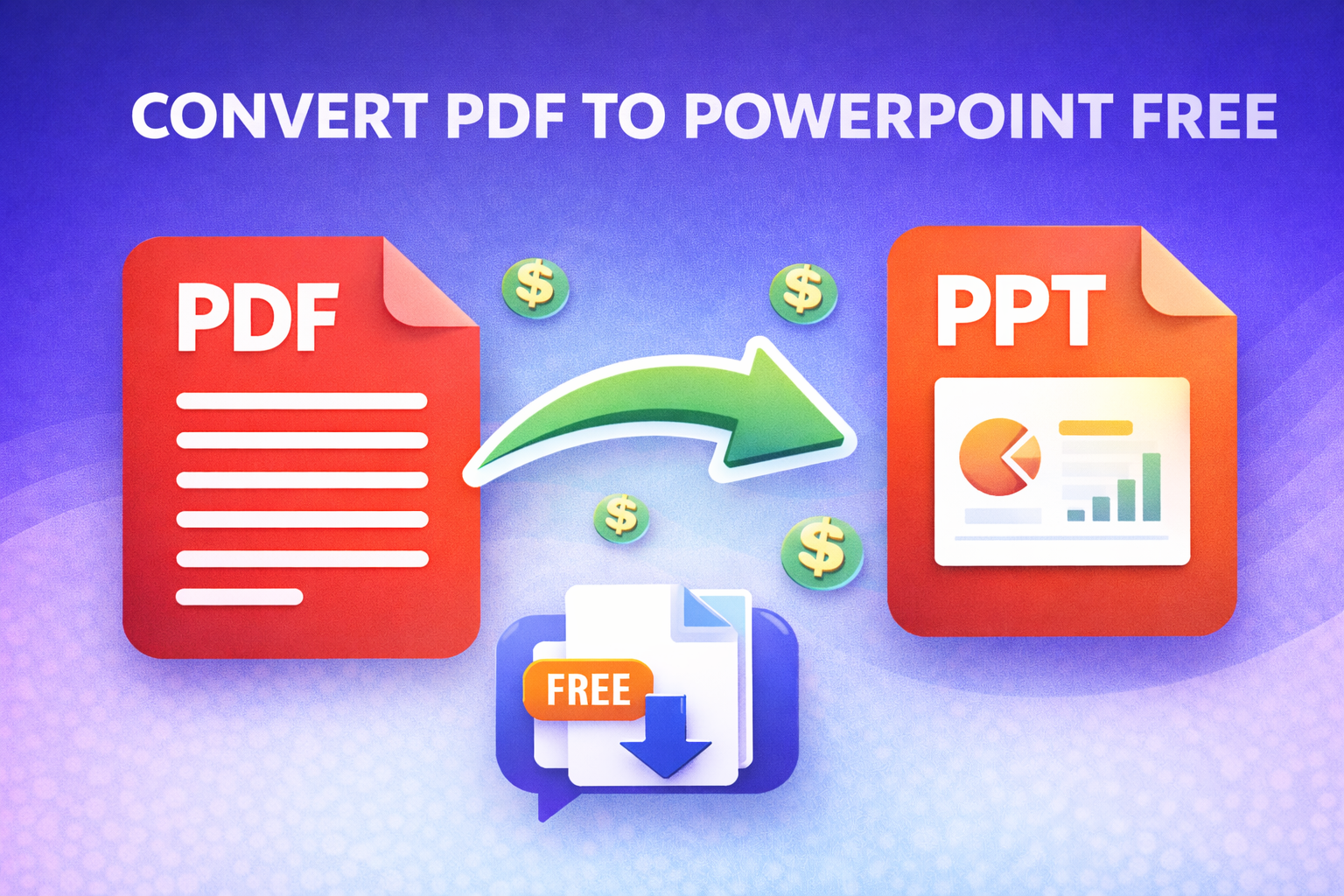
Convert PDF to PowerPoint Free: Fast and Easy (2026)
Convert PDF to PowerPoint free and turn any locked PDF into a fully editable slide deck in under a minute. You received a presentation as a PDF. Or your own PowerPoint was saved as PDF and now you need to edit it. Or your client sent a PDF brief and you need to rebuild it as slides.
Remaking the entire thing from scratch is not the answer. Converting it is.
⚡Quick Answer: Go to theconverterkit.com/pdf-to-pptx, upload your PDF, and download a fully editable PowerPoint file instantly. Free, no sign-up, no watermarks.
Table of Contents
- Why People Need to Convert PDF to PowerPoint Free
- How to Convert PDF to PowerPoint Free in 3 Steps
- What Happens to Your Content When You Convert PDF to PowerPoint Free
- Convert PDF to PowerPoint Free vs Recreating Slides Manually
- Who Uses PDF to PowerPoint Conversion (Real Scenarios)
- How to Get the Best Results When You Convert PDF to PowerPoint Free
- What to Do After You Convert PDF to PowerPoint Free
- Common Mistakes to Avoid
- Frequently Asked Questions
Key Takeaways
- Convert PDF to PowerPoint free at PDF to PPTX, no account or software needed
- Every PDF page becomes an individual, editable slide in the output file
- Text, images, and layout are all preserved during conversion
- Works on Windows, Mac, iPhone, and Android directly in your browser
- Need to go the other direction? PPTX to PDF converts your finished presentation back to PDF for sharing
- Use Split PDF first if you only need certain pages converted into slides
Why People Need to Convert PDF to PowerPoint Free
The need to convert PDF to PowerPoint free comes from one core problem: PDFs are locked. You can read them, print them, and share them, but you cannot edit them in PowerPoint without first converting the format.
Received presentations are almost always shared as PDF. Speakers, trainers, and conference organizers routinely send their decks as PDFs to prevent editing. When you need to adapt that content for your own presentation, converting to PowerPoint is the only practical option.
Old PowerPoint files get saved as PDF accidentally. Many people convert their decks to PDF for archiving or sharing and later realize they no longer have the original PPTX file. Converting back is the only way to recover an editable version.
Client briefs and reports come as PDFs. Consultants, marketers, and designers frequently receive PDF reports that need to be repurposed into presentation format for a different audience. Rebuilding slide by slide wastes hours.
Academic and research PDFs need to become presentations. Students and researchers regularly need to turn PDF papers, journal articles, or study materials into slide decks for lectures and seminars.
According to Microsoft’s Office support documentation, manually rebuilding a PDF as a presentation is one of the most time-consuming document tasks professionals face, making conversion tools the practical standard solution in 2026.
How to Convert PDF to PowerPoint Free in 3 Steps
The fastest way to convert PDF to PowerPoint free is through theconverterkit.com/pdf-to-pptx. Follow these steps:
Step 1: Upload your PDF. Click the upload area or drag and drop your PDF file onto the page. Your file uploads instantly and the converter begins processing immediately.
Step 2: Let the converter process your file. The tool analyzes your PDF page by page, extracting text, images, and layout data. Each page in your PDF becomes one slide in the output PowerPoint file. For a 20-page PDF you get a 20-slide PPTX.
Step 3: Download your editable PowerPoint file. Click Download and your .pptx file saves directly to your device. Open it in Microsoft PowerPoint, Google Slides, LibreOffice Impress, or any other presentation app and start editing immediately.
The whole process from upload to download typically takes under 60 seconds even for multi-page documents.
What Happens to Your Content When You Convert PDF to PowerPoint Free
Understanding what transfers correctly helps you set the right expectations and plan your edits.
Text is extracted and placed as editable text boxes. You can click on any text element in the converted slide and edit it directly. Font styles, sizes, and colors are preserved as closely as possible depending on the original PDF’s encoding.
Images are embedded at their original quality. Photos, charts, diagrams, and graphics from the PDF are placed on the correct slide at full resolution. They are fully moveable and resizable in PowerPoint.
Layout and positioning are reconstructed. The converter maps every element to its approximate position on the slide, matching the original page layout as closely as possible.
Backgrounds and colors are carried over. Colored backgrounds, branded headers, and design elements from the original PDF are reproduced in the slide design.
The more structured and clean your original PDF, the better the output. A professionally designed PDF presentation converts almost perfectly. A scanned PDF or a heavily formatted academic paper may require more cleanup after conversion.
Convert PDF to PowerPoint Free vs Recreating Slides Manually
Most people underestimate how much time manual rebuilding actually takes. Here is an honest comparison:
| Task | Manual Rebuild | Convert PDF to PowerPoint Free |
| 10-slide presentation | 45 to 90 minutes | Under 60 seconds |
| 30-slide presentation | 3 to 5 hours | Under 2 minutes |
| Image placement | Manual positioning each image | Automatic |
| Text re-entry | Full retyping required | Automatic extraction |
| Layout recreation | Manual design work | Automatic reconstruction |
| Risk of errors | High, every element typed manually | Low |
Converting saves 95% of the time compared to rebuilding manually. The remaining 5% is cleanup: adjusting any elements that did not convert perfectly, refining fonts, and customizing the design for your brand.
Even a conversion that requires 15 minutes of cleanup after downloading is dramatically faster than building 30 slides from scratch.
Who Uses PDF to PowerPoint Conversion (Real Scenarios)
The need to convert PDF to PowerPoint free shows up constantly across every industry.
Corporate trainers receive training materials from vendors and partners as PDFs. To customize the content for their own audience and add company branding, they need an editable PowerPoint version before the session.
Marketing managers get agency pitch decks and campaign reports as PDFs. To update numbers, swap images, or adjust messaging before presenting to their team, conversion is the first step.
Students and academics download research papers and lecture slides as PDFs. Converting to PowerPoint lets them add their own notes, highlight key sections, and rebuild the material as their own presentation.
Consultants receive client-provided PDFs describing business problems. Converting them into PowerPoint lets the consultant restructure the content into a clean recommendations deck without starting from a blank slide.
Sales teams inherit old PDF product brochures and need to turn them into live sales presentations with updated pricing and current product information.
Designers receive PDF brand guidelines from clients and need to pull elements into PowerPoint templates for internal presentations and pitches.
How to Get the Best Results When You Convert PDF to PowerPoint Free
A few simple steps before and after conversion make a significant difference in output quality.
Start with the cleanest PDF you can get. A PDF exported from PowerPoint, Word, or InDesign converts much better than a scanned PDF or a photographed document. If you have a choice between a digitally created PDF and a scanned one, always use the digital version.
Split your PDF first if you only need certain pages. If you have a 60-page PDF report and only need pages 10 through 25 as slides, use Split PDF to extract those pages first. Then convert the smaller file. This saves conversion time and produces a cleaner, more focused output.
Check every slide after conversion. Text boxes occasionally need minor repositioning. Fonts may substitute if the original font is not installed on your system. A quick review of each slide takes two minutes and catches any issues before you present.
Use the converted file as a base, not a finished product. The best workflow is to treat the conversion output as a starting point. Apply your own brand colors, fonts, and template after conversion for a polished final result.
💡 Pro Tip: If you regularly present content that starts as a PDF, build a simple PowerPoint master template with your brand colors and fonts. After every conversion, paste the converted slides into your template. This turns any PDF into a branded, professional presentation in under 10 minutes total from start to finish.
What to Do After You Convert PDF to PowerPoint Free
Once you convert PDF to PowerPoint free and have your editable file, a few natural next steps come up.
If the converted presentation is too large to email, Compress PDF reduces the PDF version of your final deck for easy sharing.
If you need to share the finished presentation as a PDF after editing, PPTX to PDF converts your PowerPoint back to a locked, professional PDF in seconds.
If only certain pages of a large PDF needed converting and you did not split beforehand, Split PDF can trim your PDF for a second, cleaner conversion pass.
If the PDF also contains data tables you need in Excel, PDF to Excel extracts those tables into a fully editable spreadsheet separately.
If the PDF has text content you need in Word format alongside the slides, PDF to Word handles that conversion in the same workflow.
Common Mistakes to Avoid When You Convert PDF to PowerPoint Free
Trying to convert a scanned PDF and expecting perfect text extraction. Scanned PDFs are images of text, not actual text data. The converter can extract images but cannot read scanned text without OCR processing. Use OCR PDF first to make your scanned PDF text-readable, then convert to PowerPoint.
Converting a 100-page PDF when you only need 10 slides. Always split your PDF down to the pages you actually need before converting. Converting unnecessary pages wastes time and produces a cluttered file you have to clean up afterward.
Not reviewing the output before presenting. Every converted file needs a quick review. Font substitutions, minor layout shifts, and text box sizing issues are normal and take two minutes to fix. Presenting without checking is the only real risk in the process.
Expecting the converted file to be presentation-ready without any editing. Conversion gives you editable raw material. Applying your brand, adjusting the design, and refining the content is still your job. Think of it as a very powerful shortcut, not a finished product.
Ignoring image quality after conversion. Images from the original PDF are embedded at their source resolution. If the original PDF had low-resolution images, the converted PowerPoint will have the same low-resolution images. Conversion does not enhance image quality.
Frequently Asked Questions
How do I convert PDF to PowerPoint free without losing formatting?
Use theconverterkit.com/pdf-to-pptx. The converter preserves text, images, and layout positioning. For best formatting results, use a digitally created PDF rather than a scanned document.
Does every PDF page become one slide when I convert PDF to PowerPoint free?
Yes. Each page in your PDF becomes one individual slide in the output PowerPoint file. A 15-page PDF produces a 15-slide PPTX.
Can I convert a password-protected PDF to PowerPoint?
No. Password-protected PDFs cannot be processed without the password. Remove the password protection first before converting.
Does converting PDF to PowerPoint free work on mobile?
Yes. The tool runs entirely in your mobile browser on iPhone and Android. No app download is needed to convert PDF to PowerPoint free on any device.
Is it safe to upload my PDF to convert it?
Yes. Your file is uploaded over an encrypted HTTPS connection, processed immediately, and deleted from the server automatically. It is never stored or shared.
Can I edit the text in the converted PowerPoint file?
Yes. Text from the PDF is extracted into editable text boxes in the PowerPoint output. You can click, select, delete, and retype any text element after conversion.
What if my PDF has charts and graphs?
Charts and graphs are embedded as images in the converted slides. They look correct visually but are not editable as PowerPoint charts. To make charts editable, you would need to recreate them in PowerPoint using the data from the image.
How do I convert PowerPoint back to PDF after editing?
Use theconverterkit.com/pptx-to-pdf. Upload your edited PPTX file and download a professional PDF version for sharing.
Related Tools
- PDF to PPTX — Convert PDF to PowerPoint free, fully editable slides
- PPTX to PDF — Convert finished presentations back to PDF for sharing
- PDF to Word — Convert any PDF into an editable Word document
- PDF to Excel — Extract tables and data from PDFs into Excel
- Split PDF — Extract specific pages before converting
- Merge PDF — Combine multiple PDFs into one before converting
- Compress PDF — Reduce PDF file size for email and uploads
- Word to PDF — Convert Word documents to PDF free
Conclusion
When you need to convert PDF to PowerPoint free, the choice is simple: spend 60 seconds converting or spend 3 hours rebuilding. The conversion wins every time.
Whether you are updating an old deck, customizing a received presentation, or repurposing a PDF report into slides, The Converter Kit’s PDF to PPTX tool gives you a fully editable PowerPoint file instantly, completely free, with no account and no watermarks.
Go to theconverterkit.com/pdf-to-pptx and convert PDF to PowerPoint free right now.