How to Convert JSON to CSV Online Free [2026 Guide]
You have a JSON file. You need it in Excel or Google Sheets. You do not want to write code.
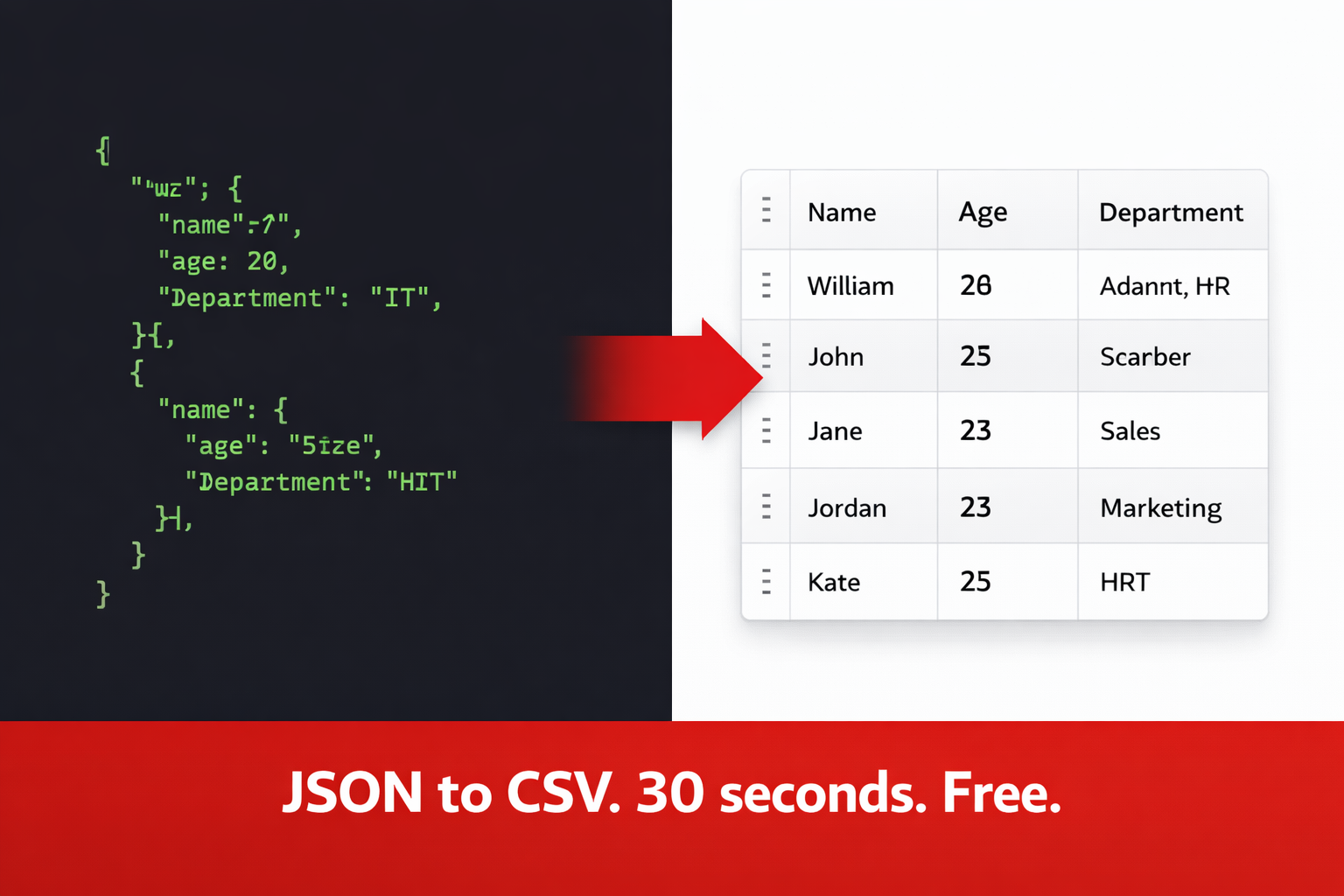
This guide shows you how to do it in under 30 seconds, completely free, with zero technical knowledge required.
Quick Answer: Go to theconverterkit.com/json-to-csv, paste your JSON or upload your file, click Convert, and download a clean CSV. Free, no sign-up, done in 30 seconds.
Key Takeaways
- JSON is a data format used by developers and apps. CSV is a format that opens in Excel and Google Sheets. Converting between them takes 30 seconds with the right tool.
- You do not need to write any code. No Python. No terminal. No technical knowledge whatsoever.
- Nested JSON is handled automatically. The tool flattens it into clean columns for you.
- Your data is processed securely and deleted immediately after conversion. Nothing is stored.
- After converting to CSV, use the free CSV to Excel tool to get a fully formatted spreadsheet ready for analysis.
What Is JSON and Why Can You Not Just Open It?
JSON stands for JavaScript Object Notation. It is the most popular format for storing and sending data between apps, websites, and APIs.
When your e-commerce platform exports order data, it is often JSON. When a developer pulls information from a database and sends it to you, it is often JSON. When an app exports its settings or records, JSON is the format doing the work behind the scenes.
The problem is that JSON was designed for machines and developers, not for people who work in spreadsheets.
Open a JSON file in Excel and you get a wall of text that looks like this:
{“orders”:[{“id”:1,”customer”:”Sarah”,”total”:49.99},{“id”:2,”customer”:”James”,”total”:120.00}]}
You cannot sort it. You cannot filter it. You cannot make a chart from it. It is completely unreadable for everyday business use.
CSV converts that same data into neat rows and columns that Excel reads perfectly.
JSON vs CSV: What Is the Difference?
| JSON | CSV | |
| Opens in Excel? | No | Yes |
| Opens in Google Sheets? | No | Yes |
| Readable without software? | Hard | Yes |
| Used by developers? | Yes | Sometimes |
| Used by analysts? | Rarely | Always |
| Supports nested data? | Yes | No (needs flattening) |
| Best for | APIs and apps | Spreadsheets and analysis |
The bottom line is simple. JSON is great for moving data between systems. CSV is great for working with data as a human being.
How to Convert JSON to CSV in 3 Steps
Using The Converter Kit’s free JSON to CSV tool, the whole process takes under 30 seconds.
Step 1. Go to theconverterkit.com/json-to-csv
Step 2. Either paste your JSON directly into the text box or upload your .json file. Both options work perfectly.
Step 3. Click Convert and download your CSV file. Open it in Excel or Google Sheets and your data is ready to use.
No account. No watermarks. No software to install. Works on every device including phone and tablet.
🔒 Security note: Your data is uploaded over encrypted HTTPS and permanently deleted from the server the moment your download completes. No data is stored, logged, or seen by anyone.
What Happens to Nested JSON?
This is the question most people have. And it is a good one.
Regular JSON is simple. One level of data with straightforward key-value pairs. Easy to convert.
Nested JSON is more complex. It has objects inside objects, arrays inside arrays. Like this:
{
“user”: {
“name”: “Sarah”,
“address”: {
“city”: “London”,
“postcode”: “SW1A 1AA”
}
}
}
Most basic converters fail on this and give you an error or a broken output.
The Converter Kit handles nested JSON automatically. It flattens the nested structure into separate columns using dot notation. The example above becomes three clean columns in your CSV: “user.name”, “user.address.city”, and “user.address.postcode.”
You do not need to understand how this works. You just need to know that it does.
Who Uses JSON to CSV Conversion
This tool is used every day across different industries and job roles. Here are the most common situations.
E-commerce business owners export order data, customer records, or inventory from their platform. Platforms like Shopify, WooCommerce, and others often export in JSON. Converting to CSV means the data is immediately workable in Excel for sales reports, customer lists, and stock management.
Marketing teams pull campaign data, social media analytics, or ad performance from APIs that return JSON. Converting to CSV lets them build dashboards, compare periods, and share reports with stakeholders who work in spreadsheets.
HR professionals receive employee data exports from HR software in JSON format. Converting to CSV makes it possible to filter, sort, and analyze the data without any technical help.
Finance teams receive transaction data or payment records in JSON from payment processors. Converting to CSV means the data goes straight into Excel for reconciliation and reporting.
Small business owners export data from booking systems, CRMs, or accounting tools that output JSON. Converting to CSV is the fastest way to get that data into a format they can actually use.
Analysts and researchers receive JSON data from external sources or colleagues and need it in spreadsheet form for analysis. The conversion takes 30 seconds and saves hours of manual work.
What to Do After Converting to CSV
Your CSV file is ready. Here is what most people need to do next.
Open it in Excel for full functionality. CSV is a plain text format. It opens in Excel but does not have formatting, charts, or formulas built in. Use the CSV to Excel converter to get a properly formatted .xlsx file with automatic column detection. This takes another 30 seconds and gives you a spreadsheet that is fully ready for analysis.
Share it as a PDF. If you need to share the data with someone who should not edit it, convert the Excel file to PDF using the Excel to PDF tool. Your data locks into a professional, uneditable format.
Work with other data formats. If your data started as XML instead of JSON, use the XML to JSON converter first, then convert to CSV. If your data is in a SQL database, use the SQL to JSON tool to extract it, then convert to CSV.
Tips for the Cleanest CSV Output
A few simple things before you convert will make your output cleaner and more useful.
Make sure your JSON is valid. Invalid JSON with missing brackets, extra commas, or incorrect syntax will cause errors. Paste your JSON into a free JSON validator first if you are unsure. Valid JSON converts perfectly every time.
Check your array structure. The best JSON for CSV conversion is an array of objects where every object has the same keys. For example a list of orders where every order has “id,” “customer,” and “total.” This produces perfectly aligned columns with no gaps.
Understand what nested data becomes. Nested objects become columns with dot notation headers like “address.city.” Arrays inside objects become multiple rows. This is the correct behavior and makes the data fully usable in a spreadsheet.
Open the CSV in Excel immediately after downloading. This lets you verify the column structure and data alignment before using it for anything important. A 10 second check catches any unexpected formatting.
💡 Pro Tip: If your JSON file is very large with thousands of records, the conversion still works perfectly. The tool handles large files without any issues. Just allow a few extra seconds for processing.
Common Mistakes People Make
Trying to open JSON in Excel directly. Excel cannot read JSON natively. If you open a .json file in Excel it shows raw text in a single cell. Always convert first, then open.
Giving up on nested JSON. Many people assume their nested JSON is too complex to convert without code. It is not. The flattening happens automatically. Upload it and see the result before assuming it will not work.
Forgetting to convert CSV to Excel after. CSV opens in Excel but it is not the same as an Excel file. You lose the ability to easily add formatting and formulas. Take the extra 30 seconds to convert CSV to Excel using the CSV to Excel tool for a proper spreadsheet.
Not checking column headers. After conversion, check that your column headers make sense. For nested JSON the headers use dot notation which is clear but may be longer than expected. You can rename columns in Excel after converting if needed.
Frequently Asked Questions
Do I need to know how to code to convert JSON to CSV?
No. Zero coding knowledge is required. You upload the file, click Convert, and download the CSV. That is the entire process.
What happens to nested JSON during conversion?
Nested objects are automatically flattened into separate columns using dot notation. For example “address.city” becomes its own column. Arrays become separate rows. No data is lost.
Is there a file size limit?
The tool handles standard JSON files of all sizes. Very large files with tens of thousands of records may take a few extra seconds to process but will convert correctly.
Is it safe to upload business data?
Yes. All uploads use HTTPS encryption. Files and data are permanently deleted from the server immediately after your download completes. Nothing is stored or retained.
Can I convert CSV back to JSON?
The reverse direction, CSV back to JSON, is a different conversion. For structured data workflows, the XML to JSON and SQL to JSON tools cover related conversion needs.
Does it work on iPhone and Android?
Yes. The tool runs entirely in your browser. No app or software required on any device.
What if my JSON has errors?
The tool will flag invalid JSON. Fix the syntax error in your JSON first, then convert. Common issues include missing closing brackets, trailing commas, and unquoted keys.
Related Tools You May Need
All free, browser-based, no sign-up required:
- CSV to Excel — Turn your converted CSV into a fully formatted Excel spreadsheet
- XML to JSON — Convert XML data to JSON before converting to CSV
- SQL to JSON — Extract SQL database data into JSON format
- Excel to PDF — Share your converted spreadsheet as a locked PDF
- PDF to Excel — Extract tables from PDF documents into spreadsheets
- Word to PDF — Convert Word documents to PDF for professional sharing
- Merge PDF — Combine multiple PDF reports into one document
Conclusion
JSON is powerful for developers and apps. It is frustrating for everyone else.
Converting it to CSV takes 30 seconds and turns unreadable data into a spreadsheet you can immediately sort, filter, and analyze. No code. No technical knowledge. No cost.
Convert your JSON to CSV free at The Converter Kit. Upload, convert, download. Done.