Remove Pages from PDF Online Free: Fast and Easy (2026)
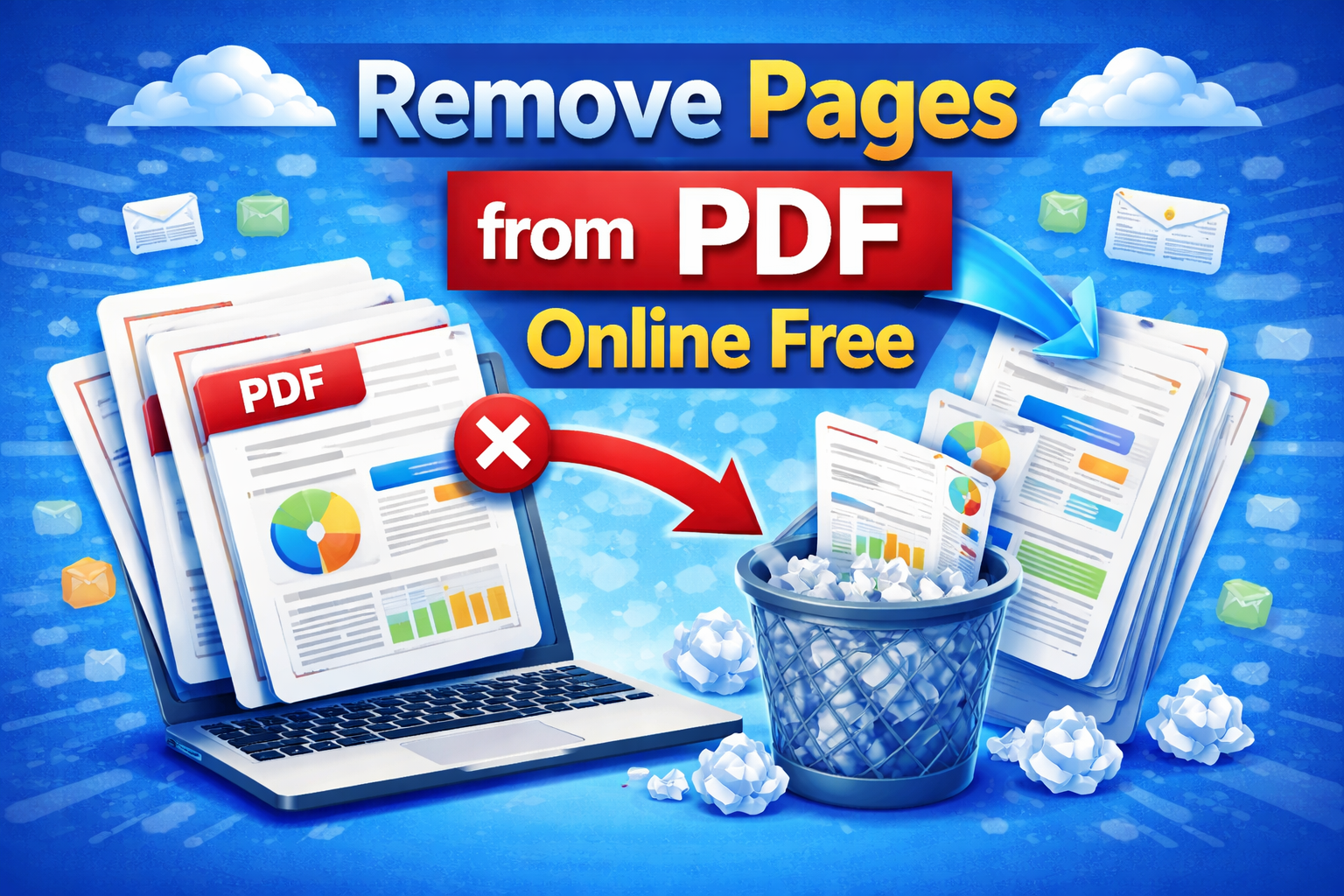
Remove pages from PDF online free and clean up any document in under 30 seconds. You downloaded a 30-page industry report but 8 pages are full-page advertisements you will never read. You received a contract with a confidentiality notice you need to strip before forwarding internally. You scanned a document and three pages came out completely blank.
Every extra page in a PDF that should not be there is a problem. It makes the file larger, the document harder to navigate, and the content less professional to share.
This guide shows you exactly how to remove pages from PDF online free, when to use it, and how to get a perfectly clean document every single time.
⚡ Quick Answer: Go to theconverterkit.com/remove-pdf, upload your PDF, select the page numbers you want to delete, and download your cleaned document instantly. Free, no sign-up, no watermarks.
Table of Contents
- Why You Need to Remove Pages from PDF Online Free
- How to Remove Pages from PDF Online Free in 3 Steps
- Remove Pages from PDF Online Free: What Changes and What Stays the Same
- When to Remove Pages vs When to Split PDF
- Who Needs to Remove Pages from PDF Online Free (Real Scenarios)
- How to Remove Pages from PDF Online Free Without Affecting Quality
- What to Do After You Remove Pages from PDF Online Free
- Common Mistakes to Avoid
- Frequently Asked Questions
Key Takeaways
- Remove pages from PDF online free at Remove PDF, no account or software needed
- Delete one page, multiple pages, or any combination of pages from any PDF instantly
- Remaining pages are completely unaffected in quality, text, images, and formatting
- Works on Windows, Mac, iPhone, and Android directly in your browser
- After removing pages, use Merge PDF to combine the cleaned document with others
- Use Compress PDF after removing image-heavy pages to further reduce file size
Why You Need to Remove Pages from PDF Online Free
The need to remove pages from PDF online free comes up in almost every professional environment, and it happens far more often than most people expect.
Downloaded reports and documents contain filler pages by design. Market research reports, industry white papers, and academic publications routinely include title pages, table of contents pages, legal disclaimers, author biography pages, and full-page sponsor advertisements that add zero value to the reader. A 45-page report often has 12 pages of material you will never reference.
Scanned documents produce unavoidable blank pages. When scanning double-sided documents on a single-sided scanner, every odd-numbered blank reverse page gets captured. A 10-page double-sided document produces a 20-page scanned PDF with 10 blank pages that need removing before the document is usable.
Merged PDFs inherit pages from multiple sources. When you combine PDFs from different origins using a merge tool, each source document may contribute pages that are irrelevant to the combined document’s purpose. Removing those pages after merging produces a focused, clean output.
Confidential pages cannot be shared with certain recipients. A full contract document may contain salary figures, personal data, or proprietary terms that need to be removed before the document is forwarded to a third party, a new hire, or an external reviewer.
File size limits demand leaner documents. Every page removed from an image-heavy PDF reduces the file size. Removing 5 full-page scanned images from a PDF can drop it from 18 MB to 9 MB, making it suddenly sendable by email without any compression needed.
According to Adobe’s PDF productivity research, professionals spend an average of 4 hours per week managing, editing, and reorganizing PDF documents, with page removal being one of the most frequently needed but least accessible functions for users without paid software.
Removing unnecessary pages is the fastest way to make any PDF more professional, more shareable, and more useful.
How to Remove Pages from PDF Online Free in 3 Steps
The fastest way to remove pages from PDF online free is through theconverterkit.com/remove-pdf. Follow these steps:
Step 1: Upload your PDF. Click the upload area or drag and drop your PDF file directly onto the page. Your file uploads instantly and a page preview loads so you can see every page of your document before making any changes. This preview is essential for identifying exactly which pages need to be removed.
Step 2: Select the pages you want to delete. Click on the page numbers or page thumbnails you want to remove. You can select a single page, multiple individual pages in any combination, or a continuous range of pages. The tool highlights your selected pages so you can visually confirm your selection before proceeding. Double-check your selection carefully before moving to the next step.
Step 3: Click Remove and download your cleaned PDF. Click the Remove Pages button and your updated PDF generates immediately with the selected pages permanently deleted. The remaining pages close together seamlessly and the document downloads to your device. Open it to confirm every unwanted page is gone and every page you needed remains perfectly intact.
The entire process from upload to download takes under 30 seconds for most documents.
Remove Pages from PDF Online Free: What Changes and What Stays the Same
Understanding exactly what happens when you remove pages from PDF online free helps you use the tool with complete confidence.
What changes:
The selected pages are permanently removed from the output PDF. The remaining pages renumber automatically starting from page 1. The total page count decreases by the number of pages removed. The file size decreases proportionally to the size of the removed pages, with image-heavy pages producing the largest size reductions.
What stays exactly the same:
Every remaining page is completely unchanged. Text stays sharp at exactly the same resolution as the original. Images stay at exactly the same quality and resolution as the original. All formatting, fonts, colors, tables, and layout elements on remaining pages are pixel-perfect identical to the original document. Hyperlinks within the document continue to function. Bookmarks and internal navigation that reference remaining pages continue to work.
The quality of your remaining content is never touched. Removing pages is a structural operation, not an image processing operation. The tool does not re-render, recompress, or alter any content that you keep.
| Element | After Removing Pages |
| Text on remaining pages | Identical to original |
| Images on remaining pages | Identical quality |
| Formatting and layout | Perfectly preserved |
| File size | Reduced proportionally |
| Page numbering | Renumbered from 1 |
| Hyperlinks | Functional on remaining pages |
| Total page count | Reduced by pages removed |
When to Remove Pages vs When to Split PDF
These two tools solve related but different problems. Knowing which one to use saves you time and produces better results.
Remove pages from PDF online free when: You want to keep the document as one file but permanently eliminate specific pages that should not be there. The result is one clean PDF with fewer pages. Use this when the unwanted pages are scattered throughout the document or when only a small number of pages need to go.
Use Split PDF when: You want to divide the document into two or more separate files, each containing specific page ranges. The result is multiple PDFs. Use this when you need to send different sections to different recipients or create standalone chapter files from a long document.
Use both tools together when: You have a large document that needs both unwanted pages removed AND needs to be divided into sections. Remove the unwanted pages first, then split the cleaned document into sections.
| Situation | Best Tool |
| Delete 3 blank pages from a 20-page PDF | Remove Pages |
| Send chapters 1-5 to one person and 6-10 to another | Split PDF |
| Strip advertisements from a downloaded report | Remove Pages |
| Create individual page files from a presentation | Split PDF |
| Remove confidential pages before sharing | Remove Pages |
| Divide a manual into sections for different teams | Split PDF |
Who Needs to Remove Pages from PDF Online Free
The need to remove pages from PDF online free spans every industry and dozens of everyday professional situations.
Office administrators and executive assistants handle enormous volumes of PDF documents daily. Stripping cover pages, removing blank separator pages, and eliminating irrelevant appendices before distributing reports to management is a routine task that previously required paid software.
Accountants and bookkeepers receive multi-page bank statements, invoice bundles, and financial reports where only specific pages are relevant to a particular client file or accounting period. Removing irrelevant pages before filing keeps records organized and focused.
HR professionals manage employment contracts, policy documents, and onboarding packages that contain sections irrelevant to specific employee categories. Removing inapplicable pages before sending to each employee produces cleaner, less confusing documentation.
Legal teams and paralegals work with court documents, discovery bundles, and contract packages where specific pages are privileged, confidential, or irrelevant to a particular matter. Removing those pages before sharing with clients or opposing counsel is a standard document preparation step.
Teachers and professors download academic papers, textbooks, and reference materials and share only the relevant sections with students. Removing all pages except the assigned reading produces a focused, appropriately sized document for distribution.
Marketing managers receive vendor proposals, agency presentations, and industry reports where large sections are irrelevant to their specific brief. Stripping those sections before sharing with their team keeps internal documents focused.
Medical receptionists and practice managers handle patient record requests where only specific visit records are relevant to a particular referral or insurance claim. Removing irrelevant medical pages before sharing protects patient privacy and keeps submissions focused.
Real estate agents and brokers work with property disclosure packages, inspection reports, and contract bundles where different sections go to different parties in a transaction. Removing irrelevant pages before sending to buyers, sellers, or lenders is standard practice.
How to Remove Pages from PDF Online Free Without Affecting Quality
A few simple practices ensure you always get a perfect result when you remove pages from PDF online free.
Always use the page preview before selecting pages to remove. The preview shows you exactly what is on each page before you delete anything. Never select pages based on page numbers alone without visually confirming what those pages contain.
Work from a copy of the original when removing pages from important documents. Download and keep the original PDF before making any changes. Removing pages is permanent in the output file, and having the original means you can always start over if you accidentally remove the wrong pages.
Remove pages before compressing. If you plan to both remove pages and compress your PDF, always remove pages first. Compression applied before page removal compresses pages you will then delete, wasting the compression operation. Remove pages first, then compress the leaner result for the smallest possible output.
Remove pages before converting to other formats. If you plan to convert your PDF to Word using PDF to Word, remove unwanted pages from the PDF first. Converting a cleaner, shorter PDF produces a cleaner Word document with less unnecessary content to edit out afterward.
💡 Pro Tip: When removing pages from a scanned document to eliminate blank pages, use Rotate PDF first if any pages are sideways. Correcting orientation before removing pages lets you see exactly what each page contains in the preview, making it much easier to identify which pages are genuinely blank versus which pages just look blank because they are rotated.
What to Do After You Remove Pages from PDF Online Free
Once you remove pages from PDF online free and have your cleaned document, several natural next steps come up.
If you need to combine your cleaned PDF with other documents, such as a cover letter or an appendix from a different file, use Merge PDF to join them into one complete document in any order you choose.
If the cleaned PDF still needs to be divided into separate sections for different recipients after page removal, use Split PDF to divide it into focused section files.
If the cleaned PDF is still too large to email after removing pages, use Compress PDF to reduce the file size further without affecting the remaining content quality.
If any remaining pages are sideways or upside down after the removal process, use Rotate PDF to fix the orientation of individual pages.
If you need to edit the text content in the cleaned PDF, use PDF to Word to convert it into a fully editable Word document.
If the cleaned PDF is a scanned document and you need the text to be searchable, use OCR PDF to add a text layer to your cleaned, page-reduced document.
Common Mistakes to Avoid When You Remove Pages from PDF Online Free
Selecting the wrong pages because you relied on page numbers without checking the preview. PDF page numbers in the file do not always match the printed page numbers inside the document. A report that starts on page 5 internally may have those pages labeled differently in the PDF structure. Always use the visual preview to confirm exactly what is on each page before deleting.
Removing pages from the original file without keeping a backup. Always keep a copy of the original PDF before making changes. If you remove the wrong pages, the only way to recover them is from the original file. One extra copy takes seconds to create and can save significant time if something goes wrong.
Forgetting to check the output document page by page. After downloading the page-removed PDF, open it and scroll through every remaining page before sending or submitting it. Confirm the correct pages were removed and no content on remaining pages was affected.
Using page removal when split would be more appropriate. If you need to send one group of pages to Person A and another group to Person B, splitting is more efficient than removing pages twice from two separate copies of the original. Choose the right tool for the actual task.
Removing pages from a password-protected PDF. Password-protected PDFs cannot be modified without the password. You will need to remove the password protection first before you can remove pages.
Not accounting for double-sided document page structure. When removing blank back pages from a double-sided scanned document, make sure you are removing the correct alternating pages. Accidentally removing content pages while trying to remove blank pages creates a document missing important content.
Frequently Asked Questions
How do I remove pages from PDF online free?
Go to theconverterkit.com/remove-pdf, upload your PDF, select the pages you want to delete using the visual preview, click Remove, and download your cleaned PDF. The whole process takes under 30 seconds.
Does removing pages from a PDF affect the quality of remaining pages?
No. Removing pages is a structural operation. Every remaining page is completely unchanged at exactly the same quality, resolution, and formatting as the original document.
Can I remove multiple pages at once when I remove pages from PDF online free?
Yes. You can select any combination of individual pages or page ranges in a single operation. All selected pages are removed simultaneously in one download.
Can I remove pages from PDF online free on my phone?
Yes. The tool works in any mobile browser on iPhone and Android. No app download is needed. Upload, select pages, remove, and download directly on your phone.
Is there a page limit for PDFs I can edit?
No. You can remove pages from PDFs of any length. Whether it is a 5-page contract or a 500-page manual, the tool handles it in one session.
Will the PDF file size decrease after I remove pages?
Yes. File size decreases proportionally to the pages removed. Removing image-heavy or scanned pages produces the largest file size reductions. Removing text-only pages produces smaller but still meaningful reductions.
Can I remove pages from a password-protected PDF?
No. Password-protected PDFs cannot be modified without the password. Remove the password protection first, then remove the pages.
Is it safe to upload my PDF to remove pages online free?
Yes. Your file is uploaded over an encrypted HTTPS connection, processed immediately, and deleted from the server automatically after your download. It is never stored, shared, or accessed by anyone.
Related Tools
- Remove PDF Pages — Remove pages from PDF online free instantly
- Split PDF — Divide PDF into separate section files
- Merge PDF — Combine cleaned PDFs with other documents
- Compress PDF — Reduce file size after removing pages
- Rotate PDF — Fix page orientation before or after removing pages
- PDF to Word — Convert cleaned PDF into an editable document
- OCR PDF — Make scanned page-removed PDFs searchable
- Word to PDF — Convert edited Word documents back to PDF
Conclusion
When you need to remove pages from PDF online free, the fix is always faster than the frustration of having an oversized, cluttered, or confidential-page-containing document you cannot properly share.
Upload your PDF, select the pages that should not be there, click Remove, and download a clean professional document in under 30 seconds. No Adobe Acrobat subscription. No software to install. No account to create.
Whether you are stripping blank pages from a scan, removing advertisements from a downloaded report, or eliminating confidential sections before sharing, The Converter Kit’s Remove PDF Pages tool handles it instantly, completely free, on any device.
Go to theconverterkit.com/remove-pdf and remove pages from PDF online free right now.